


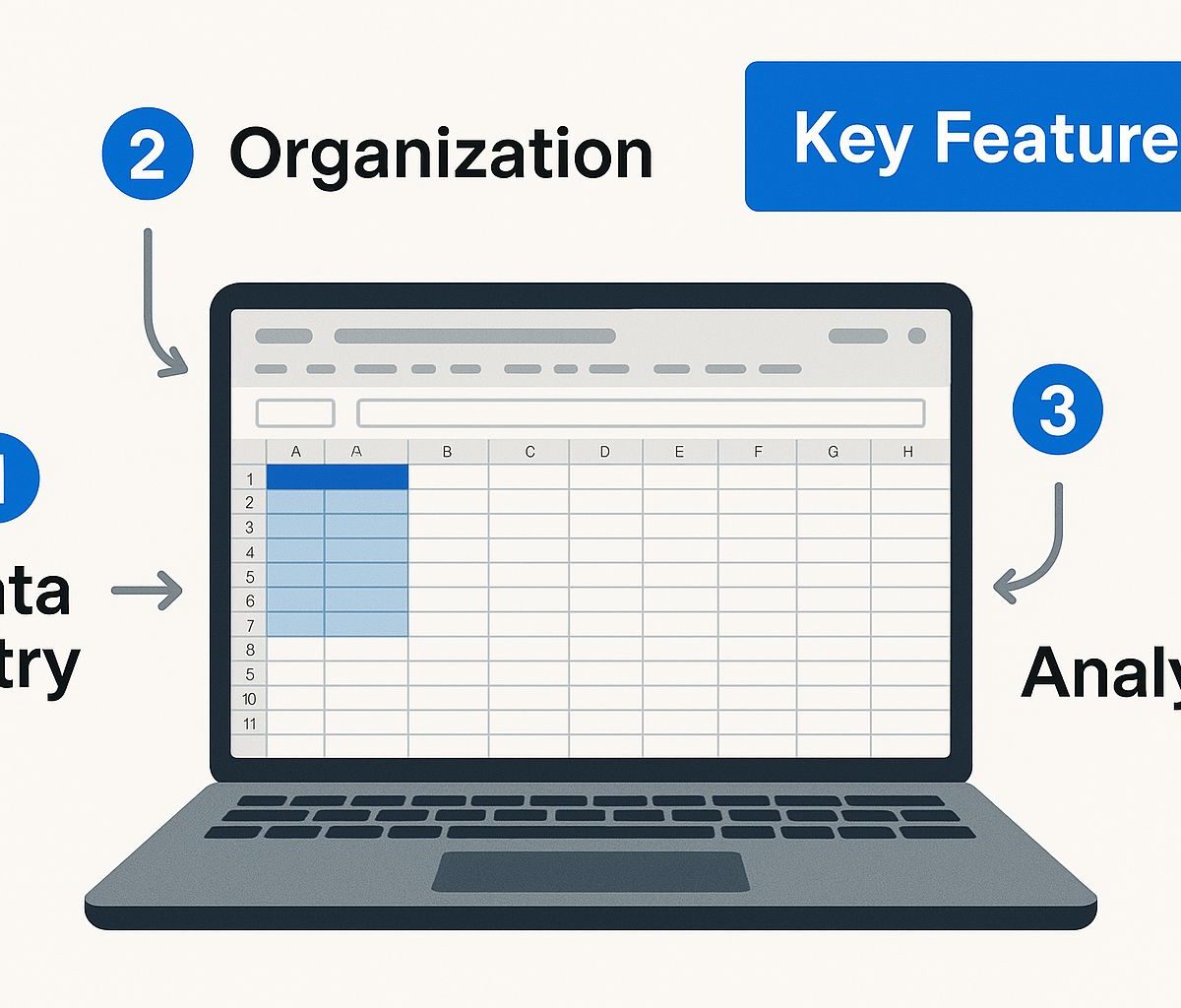
At its simplest, a marketing campaign tracking spreadsheet is a centralized document—typically built in Excel or Google Sheets—that consolidates all your marketing activities in one place. It helps you organize and evaluate the performance of each campaign, transforming fragmented data into a clear narrative about what’s truly driving results.
Think of it as an essential tool for any serious marketer. It’s the difference between making decisions based on assumptions and making decisions based on real insights.
Why You Need a Central Tracking Spreadsheet
Let’s be real—spreadsheets aren’t exactly thrilling. But they function as your strategic control center. Without one, you’re likely relying on gut instinct, struggling to justify ROI to leadership, and spending budget across channels without a clear picture of what’s paying off.
A centralized tracker eliminates the most common marketing frustrations: inconsistent reporting, disorganized data, and the inevitable question, “So… what did we actually get for that spend?” It connects your day-to-day execution with your broader business goals.
Bring All Your Data Together
Today’s marketing landscape is a maze of disconnected data sources. You’re pulling metrics from Google Analytics, Facebook Ads, email platforms—even offline initiatives. A central spreadsheet forces all these insights into one clear, unified view.
With everything in one place, you can finally make true apples-to-apples comparisons. You’ll see exactly how a dollar spent on social compares to a dollar spent on search—critical knowledge for making smart, efficient budget decisions.
Before we walk through how to build your own tracker, let’s break down the essential components that make one truly effective.
The Foundation of Data-Driven Decisions
A well-structured spreadsheet isn’t just for reviewing past performance—it directly informs your next moves. It provides the clarity needed to adjust strategies with confidence.
A marketing campaign tracking spreadsheet becomes your single source of truth. It aligns your team, supports budget decisions, and proves the value of your work. It turns abstract activity into measurable, actionable results.
Spreadsheets have remained essential in marketing since the late 1990s, and for good reason. Studies show that more than 80% of businesses still rely on them for at least some of their marketing analytics. Their longevity speaks to their effectiveness and simplicity.
By consistently tracking every campaign, you can:
- Identify Top Performers: Quickly see which channels and campaigns deliver the highest ROI.
- Spot Weak Areas: Easily flag campaigns that are overspending or underdelivering.
- Optimize in Real Time: Adjust active campaigns on the fly to improve performance.
- Forecast with Confidence: Use historical data to set more accurate goals and budgets.
Building Your Spreadsheet From the Ground Up
Now it’s time to put the concepts into action. This is where the real impact happens. Creating a strong marketing campaign tracking spreadsheet isn’t about stuffing in every metric imaginable—it’s about designing a clear, scalable structure that supports your campaigns across social ads, email marketing, PPC, and more.
The objective is to build a system that grows with your strategy, not one you’ll replace in a few months. We’ll focus on the essential data fields and a powerful built-in feature that ensures accuracy and consistency from day one.
Here’s a quick overview of how the core components of an effective tracking sheet work together:
As you can see, everything connects seamlessly: foundational campaign details flow into dynamic UTM parameters, which allow you to link your efforts back to meaningful performance metrics—all within one clean, streamlined interface.
Defining Your Core Data Fields
Every effective tracking spreadsheet starts with a strong foundation: clearly defined, well-structured columns. These are the essential elements that give meaning to each marketing action you record. Without them, your data becomes nothing more than disconnected numbers with no narrative behind them.
Think of these fields as the “who, what, when, where, and why” of your campaigns:
- Campaign Name: Your primary identifier. Use a consistent naming system (e.g., Q3_Summer_Sale_2024) to keep everything organized and easy to reference later.
- Channel: The broad category of marketing activity—Email, Social Media, PPC, Content, etc.
- Source: The specific platform within that channel, such as Facebook, Google, or your email newsletter.
- Start & End Dates: Essential for measuring performance over time and understanding campaign pacing.
- Budget: The total amount allocated to the entire campaign or a specific segment of it.
Getting these core columns right lays the groundwork for all the deeper performance metrics you’ll add later. This structure is your first major step toward building clear, actionable insights.
The Secret Weapon: A Built-in UTM Generator
Here’s a simple trick that will save you time and prevent one of the biggest issues in marketing analytics: build a UTM generator directly inside your tracking spreadsheet. Inconsistent UTMs are one of the fastest ways to ruin your data. One person types “facebook,” another writes “FB,” and suddenly your reporting is split and unreliable.
A built-in generator fixes this by standardizing every link your team creates. When you automate UTM creation inside your spreadsheet, it becomes the single source of truth for both planning campaigns and generating links. It’s one of the easiest ways to keep your data clean and consistent.
To set this up, add columns for each UTM parameter (utm_source, utm_medium, utm_campaign, utm_content, utm_term) next to your main campaign fields. Then use a simple formula to merge those values with your destination URL so the spreadsheet automatically produces a fully trackable link.
Assembling the UTM Formula
Create a new column called something like “Final Trackable URL.” In Google Sheets, you can use a CONCATENATE formula or the “&” operator to build your link.
If your columns look like this:
A2: Destination URL (for example, https://www.yourwebsite.com/landing-page
B2: utm_campaign
C2: utm_source
D2: utm_medium
Then your formula would be:
=A2&”?utm_campaign=”&B2&”&utm_source=”&C2&”&utm_medium=”&D2
Enter the formula once, drag it down the column, and every new campaign you add will instantly get a correctly formatted tracking link. This removes human error and ensures every click is attributed properly, making your tracking spreadsheet far more powerful.